


Download Xilisoft RM Converter – Free Video Converter, RM to MP4, AVI, MOV
Overview
Xilisoft RM Converter is a lightweight yet powerful video‑conversion utility designed to tackle the ever‑growing variety of media formats that users encounter today. Whether you have legacy Real Media (RM) files, high‑definition MP4 clips, or older AVI recordings, this tool promises a straightforward workflow that turns virtually any source video into a format suitable for modern devices. The program’s clean, minimalistic interface makes it accessible to beginners while still offering enough depth for more advanced users who need to fine‑tune output parameters such as bitrate, frame rate, and audio codec.
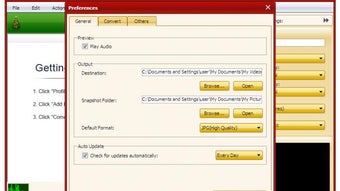
One of the standout aspects of Xilisoft RM Converter is its ability to process batches of files, allowing you to queue an entire folder and let the software work unattended. While the built‑in preview window did not render correctly during our tests—appearing black despite correct codec installation—the conversion engine itself proved reliable, delivering crisp output with minimal quality loss. Additionally, the software includes a handy shutdown scheduler that can power off your PC automatically once all conversions are complete, a feature that saves energy and prevents the system from staying on unnecessarily.
Overall, Xilisoft RM Converter positions itself as a solid, cost‑effective alternative to more expensive commercial converters, delivering the essential features most users need without the clutter of unnecessary extras.
Key Features
- Multi‑format Support: Convert RM, RMVB, MP4, AVI, MOV, WMV, FLV, MKV, and many other popular video containers.
- Batch Conversion: Add entire folders or multiple files to a single queue and let the software handle them sequentially.
- Customizable Profiles: Save and reuse conversion settings for specific devices such as iPhone, Android, PlayStation, or gaming consoles.
- HD Video Handling: Supports input and output resolutions up to 1080p, preserving detail for high‑definition content.
- Audio Codec Flexibility: Choose between AAC, MP3, AC3, or PCM audio streams, with options to adjust bitrate and channels.
- Automatic Shutdown Scheduler: Configure the program to turn off the computer after all tasks finish, ideal for overnight conversions.
- Simple Drag‑and‑Drop Interface: Add files by dragging them into the main window, eliminating the need for complex file browsing.
- Built‑in Presets for Popular Devices: One‑click conversion settings optimized for smartphones, tablets, and smart TVs.
Installation & Usage Guide
Getting started with Xilisoft RM Converter is as easy as downloading the installer from the official website. The download package is a modest 28 MB, making it quick to fetch even on slower connections. Once the file is saved, run the .exe installer (for Windows) or the .dmg installer (for macOS). The setup wizard walks you through standard steps: accepting the license agreement, selecting an installation folder, and choosing optional shortcuts. After installation, launch the application; you’ll be greeted by a clean main window featuring a large red “Convert” button at the bottom.
To convert a video, click the “Add Files” button or simply drag your source files into the list area. The program automatically detects the source format and suggests a default output profile based on the file’s resolution. If you need a different format, click the “Profile” column for that file and choose from the extensive preset list or create a custom profile by adjusting video codec, resolution, bitrate, and audio settings.
Once all files are configured, press the red Convert button. The progress bar updates in real time, and you can monitor each file’s status in the queue. For users who want the conversion to run unattended, enable the “Shutdown after conversion” option in the settings menu.
The software will then safely power down your computer once the queue is empty, making it perfect for overnight batch jobs.
Compatibility & System Requirements
Xilisoft RM Converter is primarily built for the Windows platform, supporting Windows 10, Windows 8/8.1, and Windows 7 (both 32‑bit and 64‑bit). A macOS version is also available, compatible with macOS 10.13 (High Sierra) and later. Although the core conversion engine is cross‑platform, the user interface and some advanced features—such as the automatic shutdown scheduler—are optimized for Windows.
The software runs efficiently on modest hardware; the minimum requirements include a 1 GHz processor, 512 MB of RAM, and at least 200 MB of free disk space for installation. For HD video conversion, a dual‑core CPU and 1 GB of RAM are recommended to maintain smooth performance. The program does not require additional codecs for most popular formats because it bundles its own decoder library, but if you plan to work with obscure containers, installing the latest DirectShow or QuickTime codecs can improve compatibility.
Xilisoft RM Converter also integrates with Windows Explorer’s right‑click context menu, allowing you to start a conversion directly from the file explorer without opening the main application.
Pros and Cons
Pros
- Supports a wide range of input and output formats, including legacy RM files.
- Intuitive drag‑and‑drop interface reduces the learning curve.
- Batch conversion and shutdown scheduler streamline large‑scale tasks.
- Customizable conversion profiles cater to specific devices and quality needs.
- Lightweight installer and modest system requirements.
Cons
- Built‑in preview window fails to display video in some environments.
- No native Linux version; macOS support is limited to older releases.
- Free version adds a small watermark to output files (removed in the paid upgrade).
- Advanced editing features such as cropping or adding subtitles are absent.
- Occasional slowdown when converting very large HD files on low‑end hardware.
FAQ
Can Xilisoft RM Converter handle 4K video files?
The current version supports up to 1080p resolution natively. While you can load 4K files, the conversion may be limited to 1080p output unless you purchase the professional upgrade that includes 4K support.
Is there a free trial without watermarks?
The free version adds a subtle watermark to each output video. A 14‑day trial of the full, watermark‑free version is available after registration.
How does the automatic shutdown feature work?
When enabled in the Settings menu, Xilisoft RM Converter monitors the conversion queue. Once all files are processed, it sends a Windows shutdown command, turning off the PC safely after a short delay.
Can I convert multiple files at once?
Yes, the software’s batch conversion engine lets you add entire folders or select multiple files. Each item will be processed sequentially using the same or individual profiles.
Is technical support provided for the free version?
Free users have access to community forums and a knowledge base. Priority email support is reserved for licensed users.
Conclusion & Call to Action
Xilisoft RM Converter delivers a solid balance between simplicity and functionality, making it an appealing choice for anyone who needs to convert legacy Real Media files or modern video formats without investing in expensive, feature‑heavy suites. Its straightforward UI, batch processing, and device‑specific presets cover the most common conversion scenarios, while the automatic shutdown timer adds a touch of professionalism for power users. Although the preview window is currently unreliable and the free version applies a watermark, these drawbacks are outweighed by the program’s speed, low system footprint, and extensive format support. If you’re looking for a dependable, secure, and easy‑to‑use video converter that can handle both old RM files and contemporary HD media, Xilisoft RM Converter is worth a download. Click the button below to get the latest version and start converting your videos today.
Download Xilisoft RM Converter now
Pros: Wide format support, batch conversion, lightweight, device presets.
Cons: Preview window black, watermark in free version, no native Linux build.